Preview Punch Card Content
The Display tab is used to define the content of this Punch Card within your website or branded app. This tab displays the status of the content, and the date the content was created and last updated. For more information on defining Punch Card content, please see
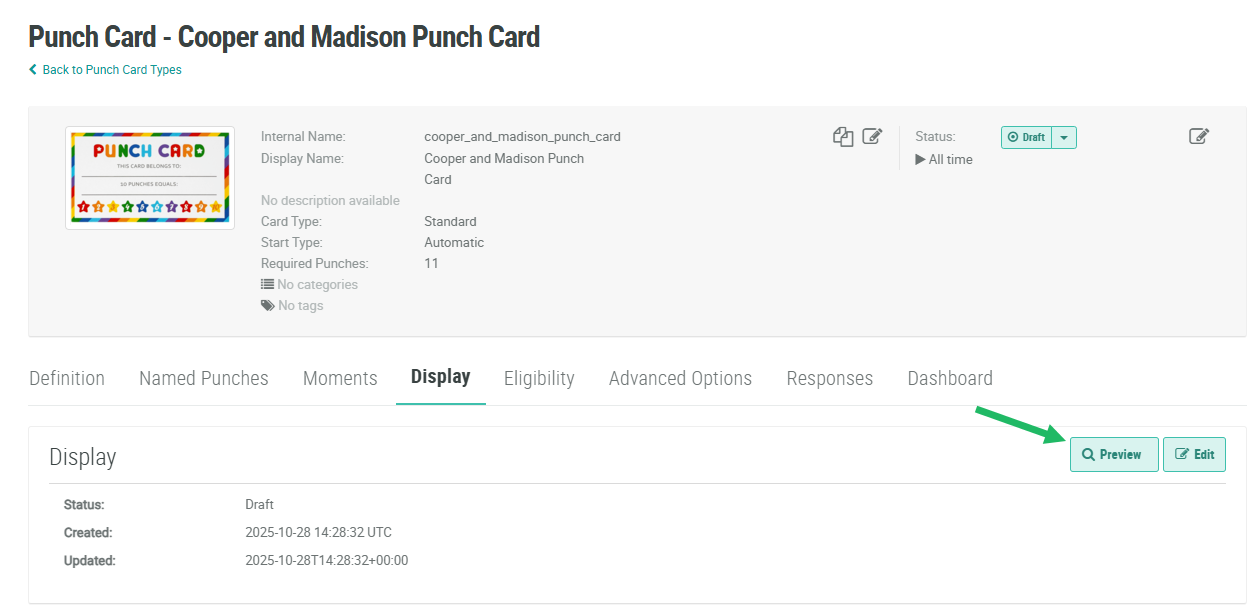
From the Display tab, you can also preview the Punch Card content to verify that it's rendering correctly:
-
Select Campaigns from the top navigation bar, then select Punch Cards > Punch Cards from the side navigation menu. The Punch Cards screen is displayed.
-
Search for and select the desired Punch Card (see
-
Select the Display tab.
-
Click Preview. The platform opens a new browser tab or window, and displays all the Layouts defined in this Punch Card.